See your child's bus on your phone
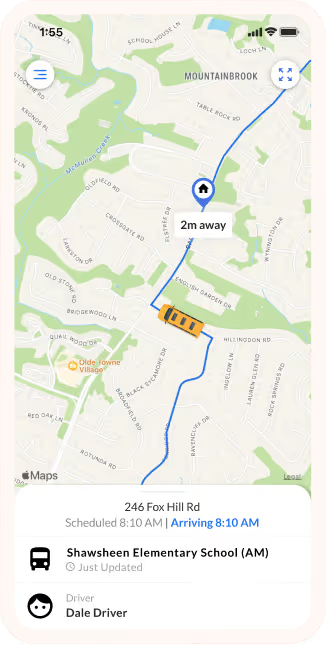
The free BusRight Parent App shows where your child's bus is, the estimated arrival time for your stop, and messages from your district's transportation office. Your school district sends you an email invitation to get started.
Get started in three steps
Find your invitation
Look for an email from noreply@busright.me with the subject "You're Invited to BusRight." Your school district sends it to the email address they have on file for you.
Download the free app
Search "BusRight" on the App Store or Google Play, or use the buttons below.
Sign in with that email
Enter the email your invitation was sent to, then the code BusRight emails you. Your student and bus route appear.
What you can do in the app
See your child's routes
Switch between morning and afternoon routes, or between children. Routes are grouped by school.
Know when the bus is coming
Before the route starts, see the scheduled time for your stop. Once it's running, see where the bus is and an updated arrival time. In some districts, the bus appears when it's near your stop.
Get alerts and messages
Tap the bell on a route to get alerts when the bus starts, when it's 5, 10 or 15 minutes away, and when it arrives. Messages from your transportation office, like bus changes or delays, appear in Notifications.
Watch how to sign in
A short video from BusRight that walks through signing in with the code BusRight emails you.
Need help?
I can't find the invitation email.
Search your email for "You're Invited to BusRight" and check your spam, junk, and promotions folders. If it isn't there, contact your school district's transportation office. They can check the email address they have for you and send a new invitation.
The app says "Account Not Enabled by Administrator."
The email you entered hasn't been invited yet, or it's different from the one your school has on file. Contact your district's transportation office to update it and send an invitation.
Do I need a password?
No. Enter your email, and BusRight emails you a code to sign in.
I see the wrong bus or stop, or a student is missing.
Your district's transportation office manages bus assignments. Once they update your student's route, the app updates on its own.
The bus shows as offline.
The route may not have started yet, or the bus may not be connected that day. You'll still see the scheduled time. In some districts, the bus appears only when it's near your stop. If it keeps happening, contact your district's transportation office.
How do I choose my alerts?
Open a route and tap the bell. You can get alerts when the bus starts its route, when it's 5, 10 or 15 minutes away, and when it reaches your stop.
Can someone else in my family use the app?
Invitations usually go to the guardians listed in the school's records. You can sign in on more than one device with your invited email; the code goes to that email each time. To invite another guardian, contact your district's transportation office.
How do I delete my account?
Open Settings in the app, tap Delete Your Account, and confirm.
Who do I contact for help?
For routes, stops or invitations, contact your district's transportation office. For problems with the app, email support@busright.com.
¿Habla español?
Busque el correo "You're Invited to BusRight" de noreply@busright.me, descargue la aplicación gratuita BusRight e inicie sesión con ese correo. BusRight le enviará un código. ¿No recibió la invitación? Comuníquese con la oficina de transporte de su distrito.